Managing E-Sign Forms and Signatures
Managing E-Sign Forms and Signatures is a BidBuild training video in Integrations with a step-by-step PDF that shows how to manage e-signatures and forms in BidBuild.
You connect SignNow or purchase signature credits, upload a form and attach it to a lead or job, add recipients, place signature and text fields, send the document for signature, and organize completed forms into folders. Forms sent on a job are also available from the job record.
3:14
What this guide covers
This document explains how to connect your SignNow account (or purchase signature credits), upload forms, send them for e-signature, and organize completed documents and folders within the system.
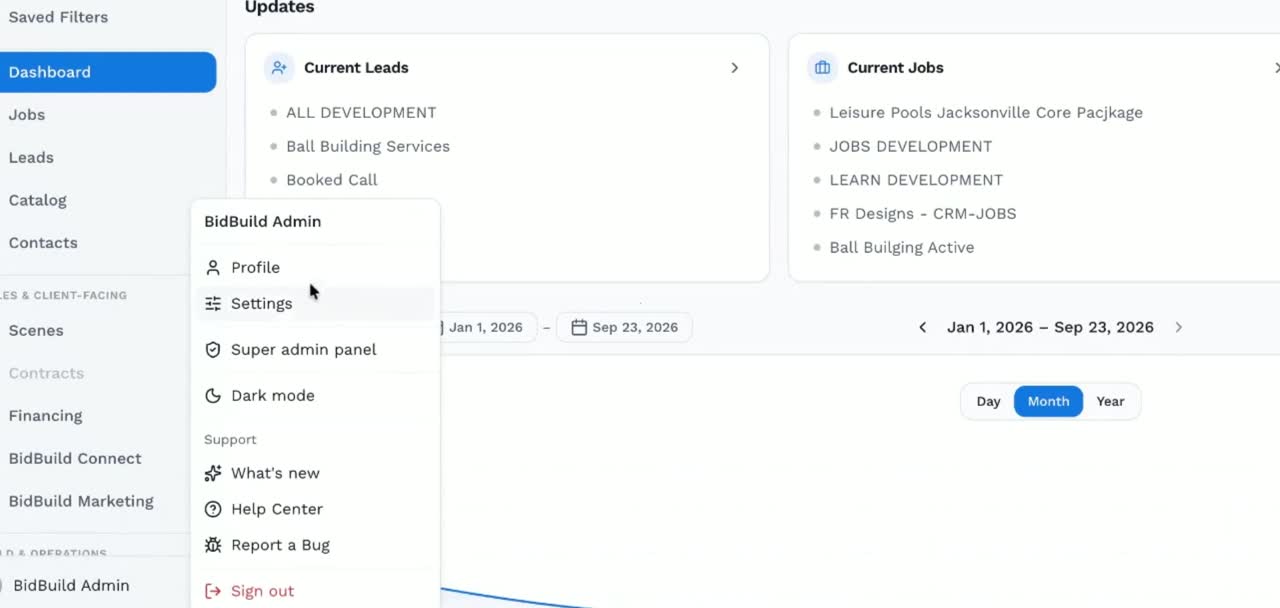
Step 1: Access Profile and E-Sign Settings
Log in to Buildsign or SignNow and go to your Profile and Settings area. Inside the settings section, open the e-sign configuration area and then go up to your e-sign options.
Step 2: Connect SignNow or Purchase Signature Credits
If you would like to connect your existing SignNow account, use this e-sign settings space to complete the connection. If you do not want to connect an existing account, purchase signature credits from Bid, Build, Sign by selecting the "Buy Now Credits" option. Once you purchase, the system will track your credits. Those credits are counted against signature envelopes.
Step 3: Open the Forms Section
Navigate to the Forms section in the left-hand menu; this is where all of your signatures and related forms will be stored.
Step 4: Upload a New Form
To add a new form, click Upload Form and select the document. Once the file is uploaded, you can rename the file. You can also attach it to a specific lead or to a specific job. If you do not assign it to anything, it will remain in this Forms section.
Step 5: Add Recipients and Signers
Add everyone who needs to sign — each recipient gets their own signing link by email. Enter the full name and email address for each person you want to send the form to. Once you have added all recipients, click Save and Continue.
Step 6: Place Signature and Form Fields
Place signature and initials fields for each recipient, along with date fields. Add any additional text fields you need and optionally add a name or label inside the field. Once you are ready, click Save and Continue.
Step 7: Send for Signature
Send the document for signature. When the document is sent, it will appear in the area labeled Out for Signature.
Step 8: Create Folders and Move Items
You can organize your files by creating folders. Select New Folder to create a folder. Once a folder is created, you can move items into that folder, and those items will be saved inside the folder.
Step 9: Access Saved Forms from Jobs
In your Jobs section, you'll see an area labeled Forms. This is where any forms associated with that job or sales lead will be saved and accessible.
Is there a step-by-step guide for this?
Yes. Download the PDF below; it opens in a new tab so you can follow along.
Was this helpful?