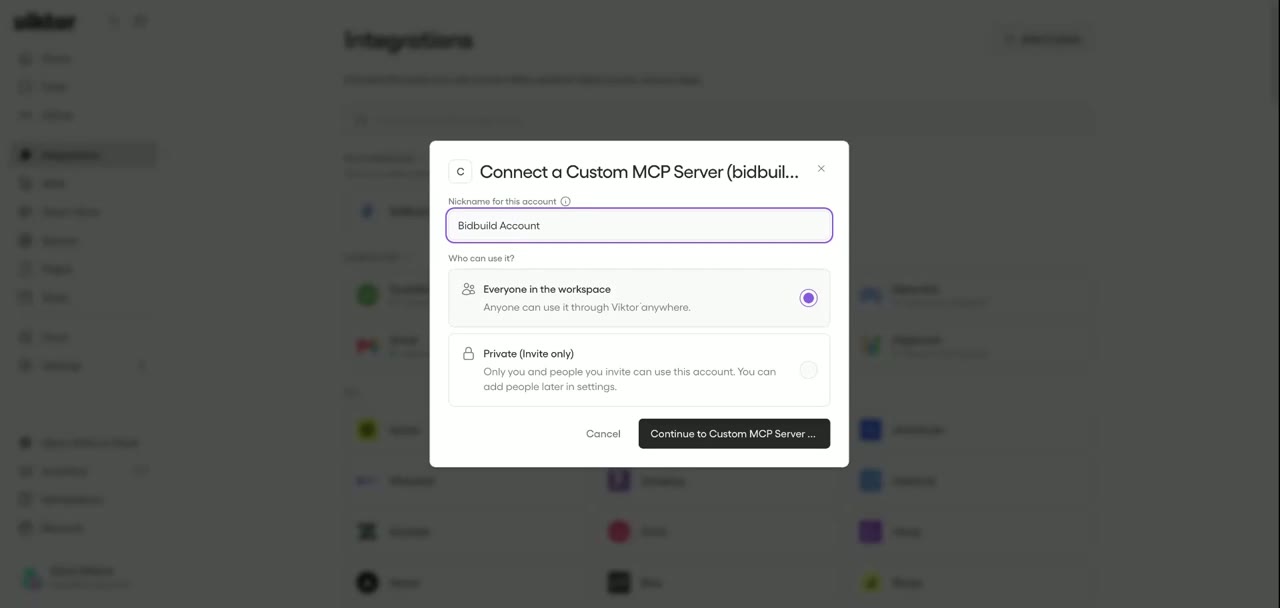
Connect the Heritage Pool Supply Integration
Connect the Heritage Pool Supply Integration is a BidBuild training video in Integrations with a step-by-step PDF that shows how to connect Heritage Pool Supply with BidBuild.
This walkthrough shows the integration setup process so your team can bring Heritage product and pricing information into its BidBuild workflow.
2:16
Integration in BidBuild
This document explains how to connect your Heritage Pool Supply Group account to BidBuild by retrieving your Account ID and API key from HeritagePoolPlus and configuring them in BidBuild.
Step 1: Open Settings in BidBuild
Navigate to the lower-left corner of BidBuild and open Settings.
In the Settings menu, select Integrations.
Step 2: Locate the Heritage Integration and Start Connection
Within the Integrations section, locate the Heritage Pool Supply Group connection.
Click Connect to begin setting up the integration.
Step 3: Log In to HeritagePoolPlus and Find Your Account ID
In the connection window, note that you will need an Account ID and an API key.
Go to heritagepoolplus.com in your browser and log in with your credentials.
Navigate to your Account page, where you will see your Account ID displayed.
Write down or copy this Account ID for use in BidBuild.
Step 4: Access the Heritage Integration Page and Get Your API Key
Next, go to the Resources section in HeritagePoolPlus and open the Heritage Integration page.
On this page, locate your company API key. If no key is shown, click the button provided to generate a new API key.
After it appears, copy the API key.
Step 5: Enter the API Key and Account ID in BidBuild
Return to BidBuild and paste the copied API key into the API key field.
Go back to the field for your Account ID and enter the Account ID you recorded from HeritagePoolPlus.
When both fields are complete, click Connect.
Step 6: Confirm Connection and Set Defaults
After connecting, BidBuild will confirm that your Heritage account is successfully connected.
Select your default Ship To location.
Then select your default Branch.
Once your defaults are chosen, click Save.
Step 7: Verify the Active Heritage Integration
You will now see that your Heritage Pool Supply Group integration is connected and active within BidBuild.
Is there a step-by-step guide for this?
Yes. Download the PDF below; it opens in a new tab so you can follow along.
Was this helpful?